Useful CRM Tips

Useful CRM Tips...
Showing posts with label CRM 2011 Ribbon Customizations. Show all posts

Thursday, July 05, 2012

Create Dynamic Ribbon Menu for Application Level Ribbon

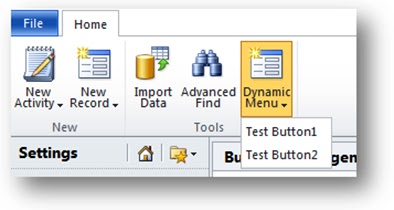
I’m going to show you how to dynamically generating menu for the application ribbon button. The end result will like below:

The procedure uses these steps:
  • Define the Parent Control
  • Define CommandDefinitions
  • Create a Script Web Resource

Define the Parent Control

Once you determine the location where you would like to create a dynamic menu, create a CustomAction to add the CommandUIDefinition as shown below.

<CustomAction Id="Add_Dynamic_Menu"
                    Location
="Mscrm.BasicHomeTab.Tools.Controls._children">
       
<CommandUIDefinition>
         
<FlyoutAnchor Id="ISV.DynamicFlyoutAnchor"
                        Sequence
="100"
                        Command
="Mscrm.Enabled"
                        Image16by16
="/_imgs/placeholders/ribbon_placeholder_16.png"
                        Image32by32
="/_imgs/ribbon/newrecord32.png"
                        LabelText
="Dynamic Menu"
                        Alt
="Dynamic Menu"
                        PopulateDynamically
="true" ="ISV.PopulateMenu"
                        TemplateAlias
="isv" />
       
</CommandUIDefinition>
     
</CustomAction>
PopulateQueryCommand

 
The value of the CustomAction Location attribute shows that I have chosen to add a FlyoutAnchor to the Tools group of the Basic Home Tab.
Set the value of PopulateDynamically attribute to true. This attribute will tell the rendering engine to populate the content of the menu dynamically. Specify the Id value of the CommandDefinition you will create in the next step to the PopulateQueryCommand attribute. The next step will show how to define the CommandDefinition.

Define CommandDefinitions

There are two CommandDefinition elements:
  • ISV.PopulateMenu: In addition to the “command” property used by standard controls, dynamically populated controls utilize another command “PopulateQueryCommand” which is responsible for retrieving the dynamic data.
    • This CommandDefinition will control what elements will be shown.
    • It uses the Jscript function named "DynamicMenu".
  • ISV.SearchCommand
    • This CommandDefinition will control what actions should be performed when the dynamically generated control elements are clicked.
    • It uses the Jscript function named "Search".
Each CommandDefinition contains a JavaScriptFunction action that specifies the Script Web resource. Specify the unique name of the Script Web resource with $webresource: prefix to the Library attribute.

<CommandDefinition Id="ISV.PopulateMenu">
       
<EnableRules>
         
<EnableRule Id="Mscrm.Enabled" />
       
</EnableRules>
       
<DisplayRules />
       
<Actions>
         
<JavaScriptFunction FunctionName="DynamicMenu"
                              Library
="$webresource:new_dynamicmenupopulator.js">
           
<CrmParameter Value="CommandProperties" />
         
</JavaScriptFunction>
       
</Actions>
     
</CommandDefinition>
     
<CommandDefinition Id="ISV.SearchCommand">
       
<EnableRules />
       
<DisplayRules />
       
<Actions>
         
<JavaScriptFunction FunctionName="Search"
                              Library
="$webresource:new_dynamicmenupopulator.js">
           
<CrmParameter Value="CommandProperties" />
         
</JavaScriptFunction>
       
</Actions>
     
</CommandDefinition>

Important:

For both CommandDefinition elements, you must use the CrmParameter with the Value attribute set to "CommandProperties". This object will be used later in the script web resources to read which dynamically generated button is selected and to set the dynamically generated ribbon xml.

Create a Script Web Resource

Create a Script Web resource named new_dynamicmenupopulator.js. Set the contents of this JScript library to the following code:

function DynamicMenu(CommandProperties) {
    var menuXml
= '<Menu Id=\"ISV.DynamicMenu\"><MenuSection Id=\"ISV.Dynamic.MenuSection\" Sequence=\"10\"><Controls Id=\"ISV.Dynamic.Controls\"><Button Id=\"ISV.Dynamic.Button1\" Command=\"ISV.SearchCommand\" Sequence=\"20\" LabelText=\"Test Button1\" Alt=\"Test Button1\" /><Button Id=\"ISV.Dynamic.Button2\" Command=\"ISV.SearchCommand\" Sequence=\"30\" LabelText=\"Test Button2\" Alt=\"Test Button2\" /></Controls></MenuSection></Menu>';
   
CommandProperties.PopulationXML
= menuXml;
}


function Search(CommandProperties) {
    var controlId
= CommandProperties.SourceControlId;
   
switch (controlId) {
       
case 'ISV.Dynamic.Button1':
            alert(
'Button 1 Command Implementation');
       
break;
       
case 'ISV.Dynamic.Button2':
            alert(
'Button 2 Command Implementation');
           
break;
       
default:
            alert(
'Button Unknown');
    }
}


This library contains two functions:

  • DynamicMenu
  • Search
DynamicMenu Function

The DynamicMenu function defines the XML for a Menu element containing Button definitions. In this example, there are two buttons defined within a MenuSection element. Each Button uses the following attribute values:
  • ISV.Dynamic.Button1
    • Command: ISV.SearchCommand
    • Sequence: 20
    • LabelText: Test Button1
    • Alt: Test Button1
  • ISV.Dynamic.Button2
    • Command: ISV.SearchCommand
    • Sequence: 30
    • LabelText: Test Button2
    • Alt: Test Button2
Both of these buttons are configured to use the ISV.SearchCommand created in the previous step.

Search Function

The Search function is called when buttons are clicked at run time. Because the CommandDefinition you created in the first step passes the value "CommandProperties", this object is passed through and you can read the SourceControlId property to determine which of the dynamically generated buttons was clicked and perform the appropriate action.

Friday, June 29, 2012

Create a Custom Group in Entity Ribbon Main Tab

For this, I have opted the WorkRequest(custom Entity), in this entity ribbon am going to create a new custom group and place three custom buttons in that.

for this first we need to export the customization of that entity then edit the
RibbonDiffXml of that entity as follows.

In the <CustomActions/> node place this code to create the new custom group on the main tab of the respective entity and also add custom buttons to that group

then define the command definations (which also contains the actions to be peformed by the custom buttons) for the controls(buttons) & custom group as we declared above
<CustomActions>
          <CustomAction Id="Mscrm.Form.new_work_request.CustomGroup.CustomAction"
                        Location="Mscrm.Form.new_work_request.MainTab.Groups._children"
                        Sequence="110">
            <CommandUIDefinition>
              <Group Id="Mscrm.Form.new_work_request.CustomGroup.Group"
                      Command="Mscrm.Isv.new_work_request.Form.Group0"
                      Title="ISV WorkRequest Button Group"
                      Sequence="51"
                      Template="Mscrm.Templates.Flexible2">
                <Controls Id="Mscrm.Form.new_work_request.CustomGroup.Controls">
                  <Button Id="Mscrm.Form.new_work_request.Form.Group0.Control0"
                          Command="Mscrm.Isv.new_work_request.Form.Group0.Control0"
                          LabelText="$LocLabels:Mscrm.Isv.new_work_request.Form.Group0.Control0.LocLabel"
                          ToolTipTitle="$LocLabels:Mscrm.Isv.new_work_request.Form.Group0.Control0.LocLabel"
                          ToolTipDescription="$LocLabels:Mscrm.Isv.new_work_request.Form.Group0.Control0.LocLabel"
                          Image16by16="/_imgs/ribbon/customaction16.png" Image32by32="/_imgs/ribbon/customaction32.png"
                          Image16by16Class="ms-crm-Upgraded-Ribbon-Image16"
                          Image32by32Class="ms-crm-Upgraded-Ribbon-Image32"
                          Sequence="10"
                          TemplateAlias="o1" />
                  <Button Id="Mscrm.Isv.new_work_request.Form.Group0.Control1"
                          Command="Mscrm.Isv.new_work_request.Form.Group0.Control1"
                          LabelText="$LocLabels:Mscrm.Isv.new_work_request.Form.Group0.Control1.LocLabel"
                          ToolTipTitle="$LocLabels:Mscrm.Isv.new_work_request.Form.Group0.Control1.LocLabel"
                          ToolTipDescription="$LocLabels:Mscrm.Isv.new_work_request.Form.Group0.Control1.LocLabel"
                          Image16by16="/_imgs/ribbon/customaction16.png"
                          Image32by32="/_imgs/ribbon/customaction32.png"
                          Image16by16Class="ms-crm-Upgraded-Ribbon-Image16"
                          Image32by32Class="ms-crm-Upgraded-Ribbon-Image32"
                          Sequence="10"
                          TemplateAlias="o1" />
                  <Button Id="Mscrm.Isv.new_work_request.Form.Group0.Control2"
                          Command="Mscrm.Isv.new_work_request.Form.Group0.Control2"
                          LabelText="$LocLabels:Mscrm.Isv.new_work_request.Form.Group0.Control2.LocLabel"
                          ToolTipTitle="$LocLabels:Mscrm.Isv.new_work_request.Form.Group0.Control2.LocLabel"
                          ToolTipDescription="$LocLabels:Mscrm.Isv.new_work_request.Form.Group0.Control2.LocLabel"
                          Image16by16="/_imgs/ribbon/customaction16.png"
                          Image32by32="/_imgs/ribbon/customaction32.png"
                          Image16by16Class="ms-crm-Upgraded-Ribbon-Image16"
                          Image32by32Class="ms-crm-Upgraded-Ribbon-Image32"
                          Sequence="10"
                          TemplateAlias="o1" />
                </Controls>
              </Group>
            </CommandUIDefinition>
          </CustomAction>
          <CustomAction Id="Mscrm.Form.new_work_request.CustomGroup.MaxSize.CustomAction"
                        Location="Mscrm.Form.new_work_request.MainTab.Scaling._children"
                        Sequence="120">
            <CommandUIDefinition>
              <MaxSize  Id="Mscrm.Form.new_work_request.CustomGroup.MaxSize"
                        GroupId="Mscrm.Form.new_work_request.CustomGroup.Group"
                        Sequence="21"
                        Size="LargeLarge" />
            </CommandUIDefinition>
          </CustomAction>
          <CustomAction Id="Mscrm.Form.new_work_request.CustomGroup.Popup.CustomAction"
                        Location="Mscrm.Form.new_work_request.MainTab.Scaling._children"
                        Sequence="140">
            <CommandUIDefinition>
              <Scale    Id="Mscrm.Form.new_work_request.CustomGroup.Popup.1"
                        GroupId="Mscrm.Form.new_work_request.CustomGroup.Group"
                        Sequence="85"
                        Size="Popup" />
            </CommandUIDefinition>
          </CustomAction>
        </CustomActions>

also define the command definations for the custom ribbon buttons as we declared above.

<CommandDefinitions>
          <CommandDefinition Id="Mscrm.Isv.new_work_request.Form.Group0">
            <EnableRules />
            <DisplayRules />
            <Actions />
          </CommandDefinition>
          <CommandDefinition Id="Mscrm.Isv.new_work_request.Form.Group0.Control0">
            <EnableRules />
            <DisplayRules>
              <DisplayRule Id="Mscrm.Isv.new_work_request.Form.Group0.Control0" />
            </DisplayRules>
            <Actions>
              <Url Address="/../Castweb/Issues/ISF.aspx?source=new_work_request&amp;OrderTypeId=2" PassParams="true" />
            </Actions>
          </CommandDefinition>
          <CommandDefinition Id="Mscrm.Isv.new_work_request.Form.Group0.Control1">
            <EnableRules />
            <DisplayRules>
              <DisplayRule Id="Mscrm.Isv.new_work_request.Form.Group0.Control1" />
            </DisplayRules>
            <Actions>
              <Url Address="/../Castweb/Issues/ISF.aspx?source=new_work_request&amp;OrderTypeId=1" PassParams="true" />
            </Actions>
          </CommandDefinition>
          <CommandDefinition Id="Mscrm.Isv.new_work_request.Form.Group0.Control2">
            <EnableRules />
            <DisplayRules>
              <DisplayRule Id="Mscrm.Isv.new_work_request.Form.Group0.Control2" />
            </DisplayRules>
            <Actions>
              <Url Address="/../Castweb/Issues/ISF.aspx?source=new_work_request&amp;OrderTypeId=3" PassParams="true" />
            </Actions>
          </CommandDefinition>
        </CommandDefinitions>

also define the rule definations for the custom ribbon buttons as we declared above.

<RuleDefinitions>
          <TabDisplayRules>
          </TabDisplayRules>
          <DisplayRules>
            <DisplayRule Id="Mscrm.Isv.new_work_request.Form.Group0.Control0">
              <FormStateRule State="Create" InvertResult="true" />
            </DisplayRule>
            <DisplayRule Id="Mscrm.Isv.new_work_request.Form.Group0.Control1">
              <FormStateRule State="Create" InvertResult="true" />
            </DisplayRule>
            <DisplayRule Id="Mscrm.Isv.new_work_request.Form.Group0.Control2">
              <FormStateRule State="Create" InvertResult="true" />
            </DisplayRule>
          </DisplayRules>
          <EnableRules />
        </RuleDefinitions>

and also define the local labels as we declared above.
<LocLabels>
          <LocLabel Id="Mscrm.Isv.new_work_request.Form.Group0.Control0.LocLabel">
            <Titles>
              <Title languagecode="1033" description="Display" />
            </Titles>
          </LocLabel>
          <LocLabel Id="Mscrm.Isv.new_work_request.Form.Group0.Control1.LocLabel">
            <Titles>
              <Title languagecode="1033" description="Search" />
            </Titles>
          </LocLabel>
          <LocLabel Id="Mscrm.Isv.new_work_request.Form.Group0.Control2.LocLabel">
            <Titles>
              <Title languagecode="1033" description="Technology" />
            </Titles>
          </LocLabel>
        </LocLabels>


finally a custom group with some custom buttons is defined under the main tab of the entity & looks like below.