Useful CRM Tips

Useful CRM Tips...
Showing posts with label CRM 2011 (JavaScript). Show all posts

Wednesday, July 04, 2012

Moving CRM 2011 Footer Data to Left Navigation Pane

Would you like to save some space on your CRM 2011 form?

For example, consider the image below, notice how the Footer includes 4 important fields that the administrator wants to show all the time to the users regardless of the section the users are navigating within the Account form:


What would it look like if we move those fields into the unused space at the bottom of the left navigation pane?
It would look just like this:


The process to configure this includes 8 steps:
  • Create a Web Resource named footerstyle with a Style Sheet (CSS) type:
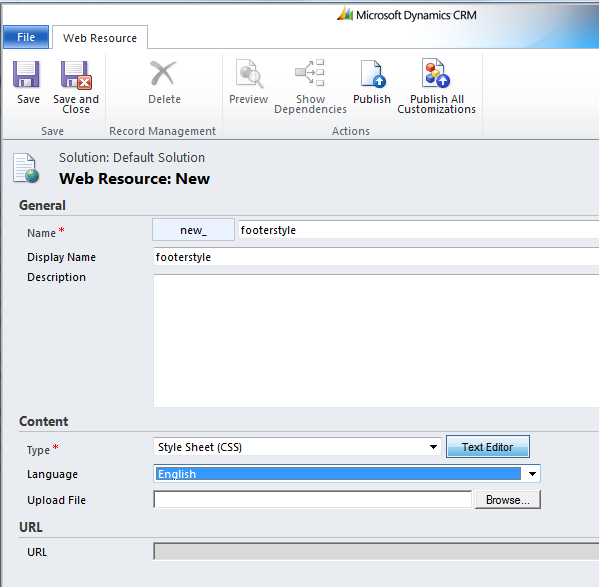


  • Click on the "Text Editor" button and paste the following code:


  • .ms-crm-Form-Footer

    {

    display: none;

    }

    .ftLabel

    {

    color: #008;

    font-style: italic;

    padding-left: 4px;

    }

    .ftValue

    {

    padding: 2px 2px 8px 12px;

    text-align: left;

    }

    .CustomFoot

    {

    padding: 2px

    }

    .leftFoot

    {

    margin-top: 10px;

    margin-left: 2px;

    border: solid 1px #008;

    width: 99%;

    }


  • Save and publish your changes then Navigate to the form editor of the entity you would like to affect. In this case we will use "Account".
  • Click on the "Form Properties" button and create a new library to add to the form


  • Click on the "Text Editor" button and paste the following code:

  • function fileload(cssname) {

    var reference = document.createElement("link")

    reference.setAttribute("rel", "stylesheet")

    reference.setAttribute("type", "text/css")

    reference.setAttribute("href", cssname)

    document.getElementsByTagName("head")[0].appendChild(reference)

    }


    function SpaceSaver() {

    var table = document.getElementById('crmNavBar');

    var row = table.insertRow(table.rows.length);

    var foot = row.insertCell(0);

    var text = document.createTextNode('Test');

    foot.appendChild(text);

    foot.id = 'CustomFoot';

    document.getElementById('CustomFoot').innerHTML = "<table class='leftFoot' cellspacing='0' cellPadding='0'>" +

    "<tr><td class='ftLabel'>Customer Since:</td></tr>" +

    "<tr><td class='ftValue'>" + document.getElementById('footer_new_customersince_d').childNodes[0].innerHTML + "</td></tr>" +

    "<tr><td class='ftLabel'>Primary Contact Info:</td></tr>" +

    "<tr><td class='ftValue'>" + document.getElementById('footer_primarycontactid_d').childNodes[0].innerHTML +

    "<br />" + document.getElementById('footer_telephone1_d').childNodes[0].innerHTML + "</td></tr>" +

             "<tr><td class='ftLabel'>NPS Status:</td></tr>" +

    "<tr><td class='ftValue'>" + document.getElementById('footer_new_npsstatus_d').childNodes[0].innerHTML + "</td></tr>" +

         "</table>";

    }


    function FormFooter() {

    fileload('/WebResources/new_footerstyle');

    SpaceSaver();

    }
    • On the code shown above, modify the red field names to reflect the fields present on your CRM Footer.
    • Create a new Event Handler to call the "FormFooter" function that moves the data from the Footer to the Left Navigation Pane:
    Save, Publish and enjoy the new available space!

    Friday, June 29, 2012

    Change Url of Left Navigation Pane Link at runtime in CRM 2011

    You can change the Url of Left Navigation Pane link dynamically.

    To explain this i take an scenerio that i have a entity, in this i have an custom left navigation pane link which loads an external URL, here i consider that as Google. Now dynamically i want to change that URL to my Blog URL. We can achieve this by the below code:


    the function loadIsvArea(Mscrm.CrmUri.create(iframeUrl),false) is responsible for achieving this.
    //Get all navigation items for this form.
    var items = Xrm.Page.ui.navigation.items.get();

    //Go through the list of navigation items.
    for (var i in items)
    {
      //Get the current navigation item in the for loop
      var item = items[i];
      //Get the label of the current navigation item
      var itemLabel = item.getLabel();
     
      //Check if this is the navigation item we are looking for using the label name.
      if(itemLabel == "Custom Link")
      {
        //Get the current navigation item id.
        var areaId = item.getId();
     //Get navigation element by using the id.
        var navElement = document.getElementById(areaId);
        //Make sure that the navigation element is not empty or null
        if (navElement != null && navElement != undefined)
        {
        //Create the url to use in the navigation link
        var iframeUrl = encodeURI("http://mscrmessentialblog.blogspot.com/");
        //Create a function that is run when the navigation link is clicked.
     navElement.onclick = function ()
        {
          //Start by creating the area, this is where the url looses "/report/path" from the path.
          loadIsvArea(Mscrm.CrmUri.create(iframeUrl),false);
          //Get the iframe in the navigation area.
          var navIframeObject = document.getElementById(areaId+"AreaFrame");
          //Set the source for the iframe again with the correct url.
          navIframeObject.src = iframeUrl;
        };
        }
      }
    }

    This results as:

    Wednesday, June 20, 2012

    Force Submit Alternative in CRM 2011

    As there is the way to Force submit a field in CRM 4.0 there is an alternative way in the CRM 2011 to achieve the same.
     Xrm.Page.getAttribute("fieldName").setSubmitMode("always");
    There are three possible ways to submit the attribute:

    • always
    • never
    • dirty